
Loading dashboard…
Point of Sale
Pick a customer, add items from stock, then take payment.
Customer
No customer selected ReadyProduct Catalog
Inventory Management
Track and manage your gold ornament stock.
Order Management
View, manage, and track customer orders and transactions.
Reports & Analytics
Gain insights into your store's performance.
Sales & Profitability Overview
Customer Management
Manage your customer details and view their history.
Karigar Management
Craftsmen profiles, gold issued/returned with wastage, assigned orders, and old-gold buy-back.
Balance = Issued − Returned − Wastage. Positive balance means gold still with the karigar.
Every issue and return of gold to/from karigar, with karat, weight, and wastage on returns.
Record customer old-gold purchases (weight, karat, buy rate). Separate from karigar issue/return.
Salaries
Manage employees, salary periods, partial payments, and linked salary expenses.
Record Salary Period
Create a salary period and record an initial full or partial payment. Only money actually paid is added to Expenses.
Log & View Expenses
Manually enter your store's operational costs and view expense history.
Log New Expense
Fill out the form below to record a new expense.
Logged Expense History
View, filter, edit, or delete your past expenses.
Total Expenses for Selected Period: $0.00
Calculator
Convert weight units and calculate gold or silver price from settings rates.
Unit conversion
Enter weight in grams or tola / aana / laal to see the other units.
- 1 Tola = 11.664 grams
- 1 Tola = 100 Laal
- 1 g ≈ 8.573 Laal
- 1 Tola = 100 Laal
Repair Jobs
Track customer repair jobs from intake to delivery.
Customer Selections
Pieces customers picked through the customer link (up to 5 each). Nothing is reserved; sold pieces drop off automatically. Cleared when you sign out.
Loading…
Gold Savings Schemes
Monthly deposit schemes — record installments and redeem the balance against a purchase at the POS.
Settings
Manage your application settings and preferences.
Store Information
Update your store's basic details.
Store locations
Add desk and storage locations for inventory items (e.g. Desk A, Desk B, Side Desk).
Metal types
Inventory, orders, and POS use Gold, Silver, or Other. Other items need a name and manual rate.
Appearance
Customize the look and feel of the application.
Select your preferred light or dark mode.
Metal Price Configuration
Set how metal prices are determined for display.
Market gold price
The international gold price from the metal API, converted to NPR and recorded on the server every 15 minutes. Every shop and phone sees the same history. For reference only — the selling rate you save above is what prices your items.
Full history
How to use SubarnaPasal
Step-by-step, with pictures of the current app. The red numbers on each picture match the numbers in the steps. Open a section to see it.
1Set up your store
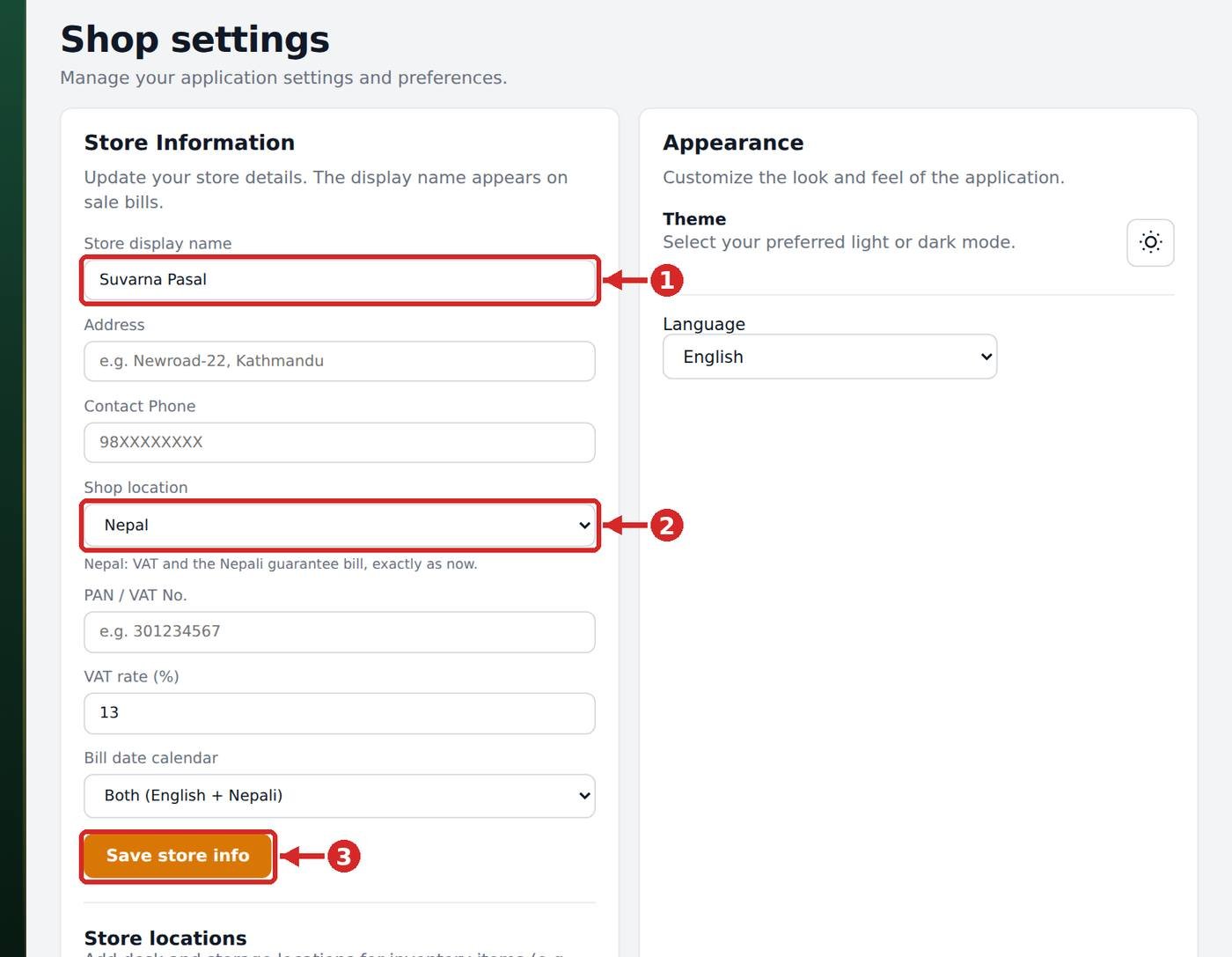
- Settings → Store Information: type your shop name (1). It is printed on bills and on every tag.
- Pick your shop location / country (2). Currency (NPR, USD, CAD…), phone code and VAT are set from it automatically after you sign in.
- Add PAN/VAT, VAT rate and the bill calendar (Bikram Sambat or English), then Save store info (3). Language and light/dark theme are under Appearance.
2Set today's gold and silver rates
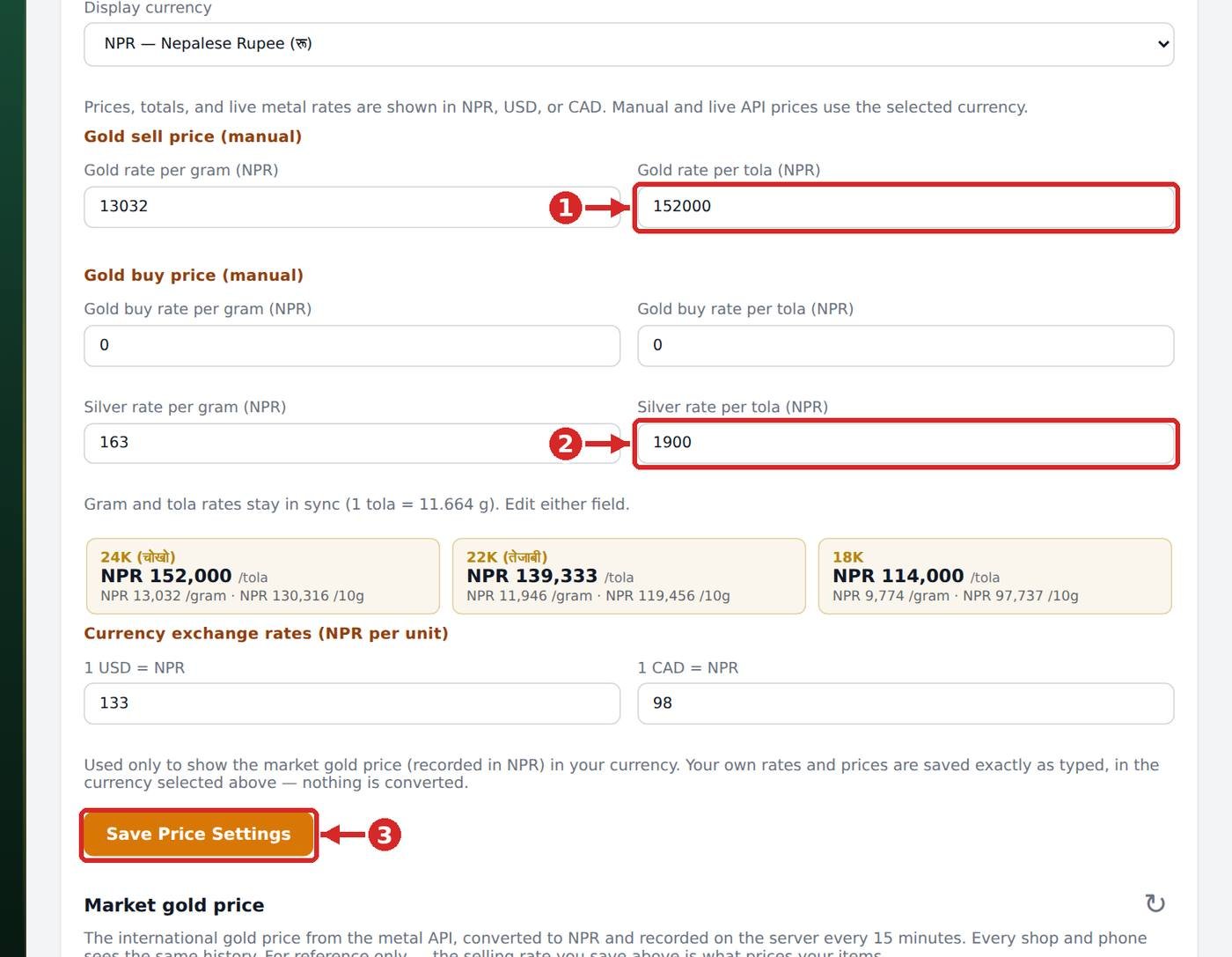
- Settings → Metal Price Configuration: enter today's gold rate per tola (1) — the per-gram and 22K / 18K rates fill in automatically.
- Enter the silver rate (2) and save (3). Every price in Inventory and POS uses these rates.
- The Market gold price card is for reference only. Rates sync to the mobile app; if two devices change a rate the newest one wins.
3Add and manage your inventory
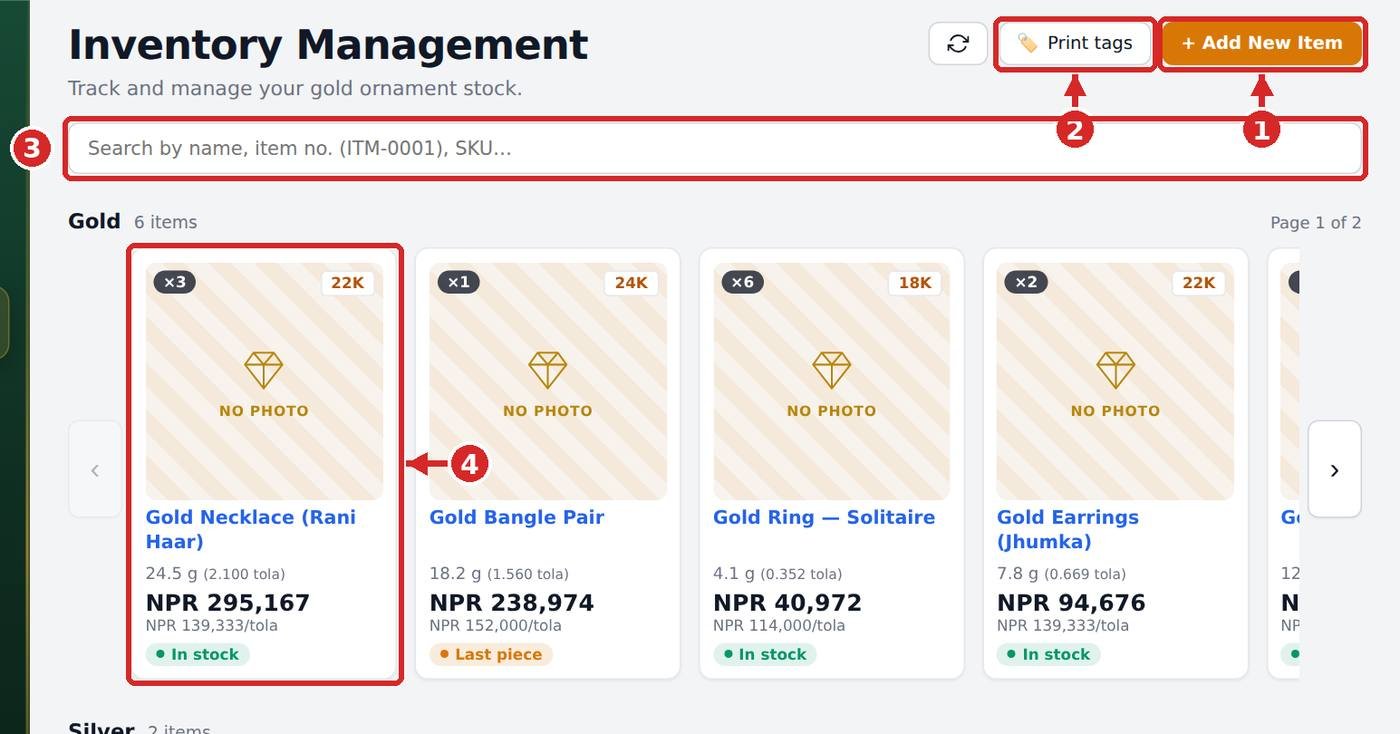
- Inventory → + Add New Item (1). Fill in the item name, metal (gold / silver / other), karat (24 / 22 / 18), weight in tola-laal or grams, quantity, and where it is kept (store location). The selling price is worked out from your metal rate.
- Optional details: making charge (jyala), jarti / wastage, stone or gem amount, a photo, purchase price (buy rate) and a note. Every item gets an item no. (ITM-0001) and a SKU with your shop code (e.g. SKU-MTUPD43G343); you can also type a barcode of your own.
- Add from the mobile app too: open Inventory in the SubarnaPasal app, tap +, take the photo with the camera and enter the same details. Items added on the phone appear here within seconds, and items added here appear on the phone — one stock list for the whole shop.
- Search by name, item no. or SKU (3) or scan a tag code. Items are shown as cards (4) grouped by metal — click a card to see full details, Edit, change the quantity, or press 🏷️ Tag to print a tag for that piece.
- Stock is deducted automatically when a piece is sold at the POS, billed from an order, or added from a customer selection. Pieces with quantity 0 are marked out of stock and disappear from the POS catalog and the customer link.
4Print tags with QR codes
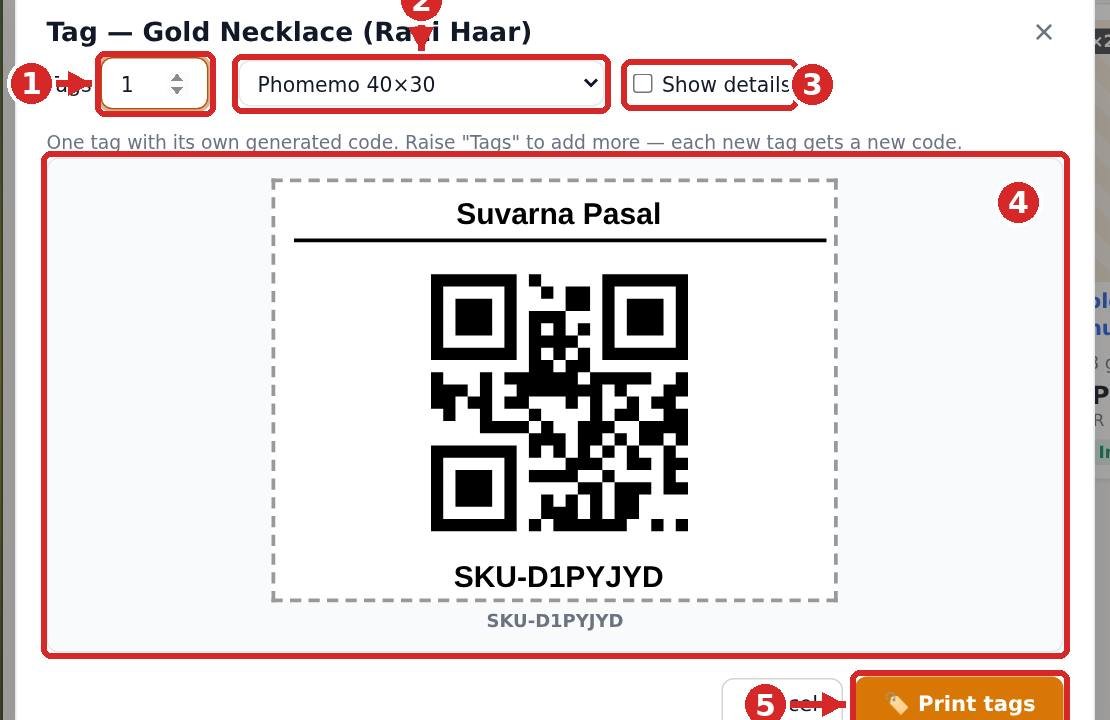
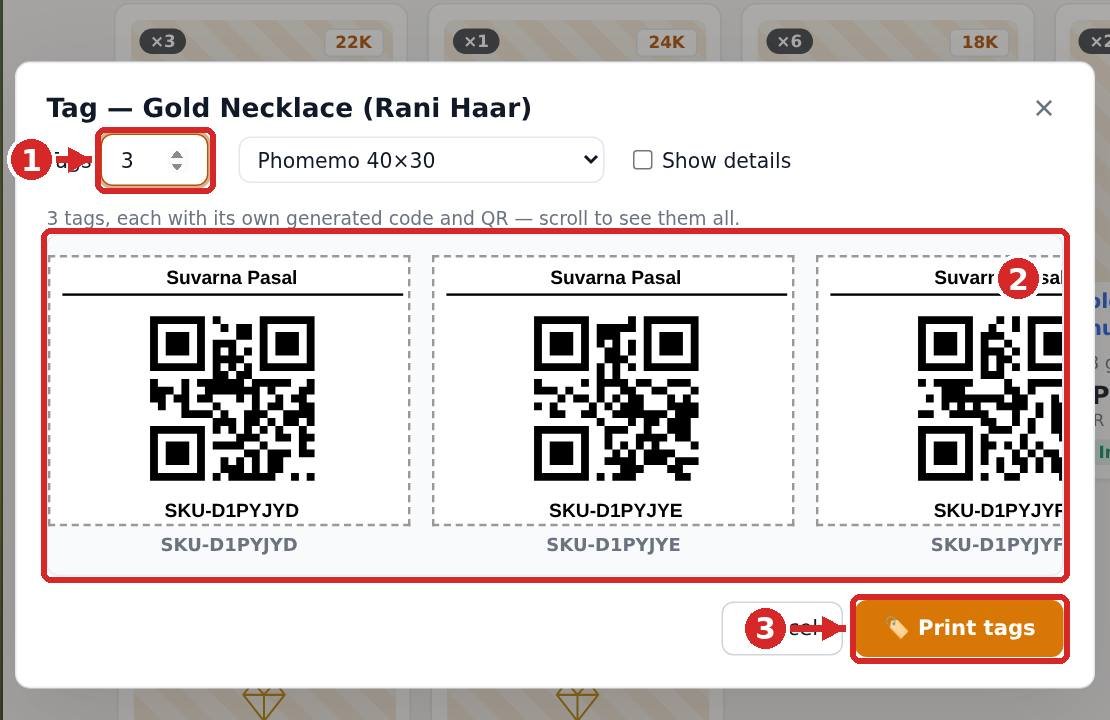
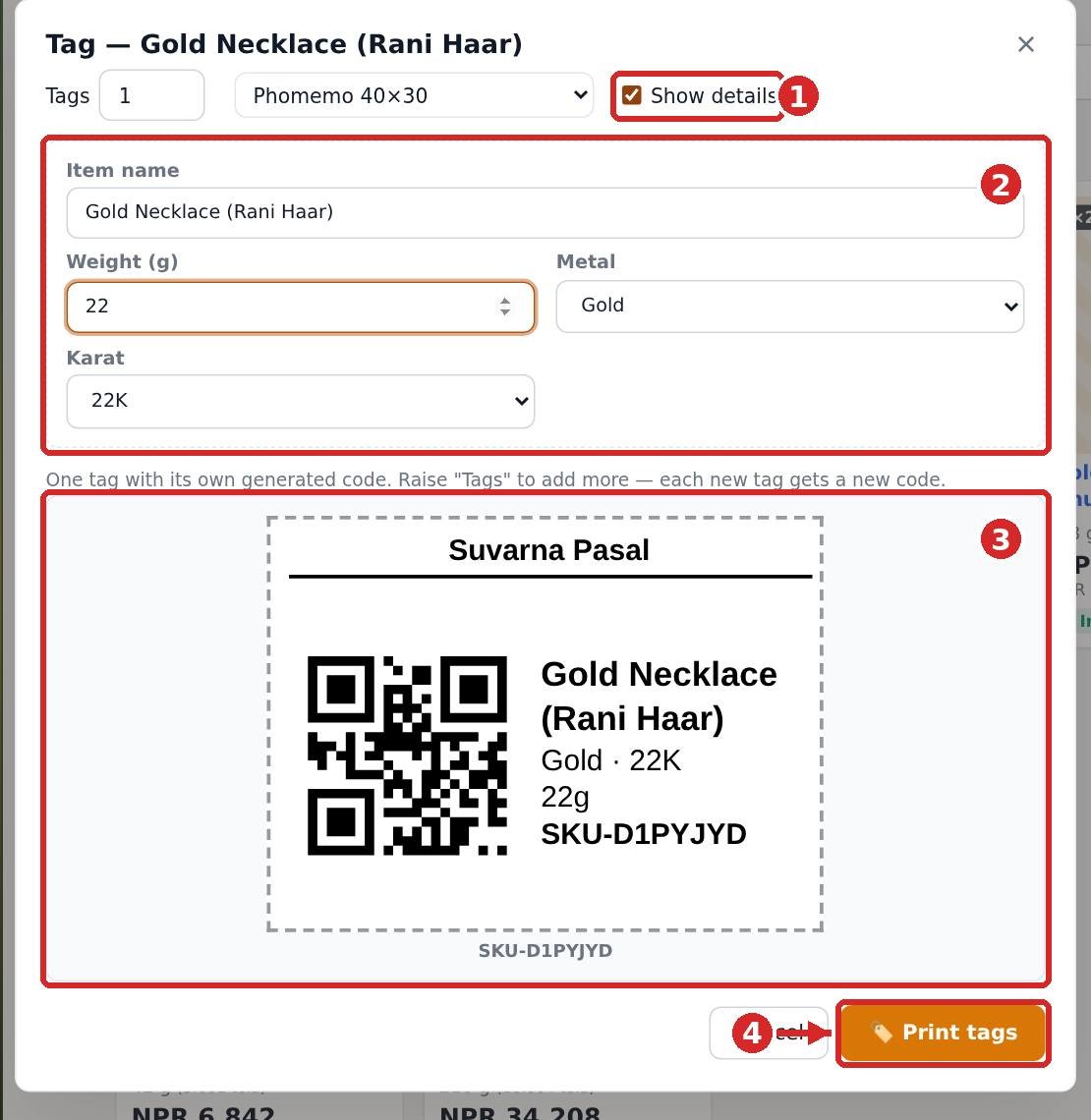
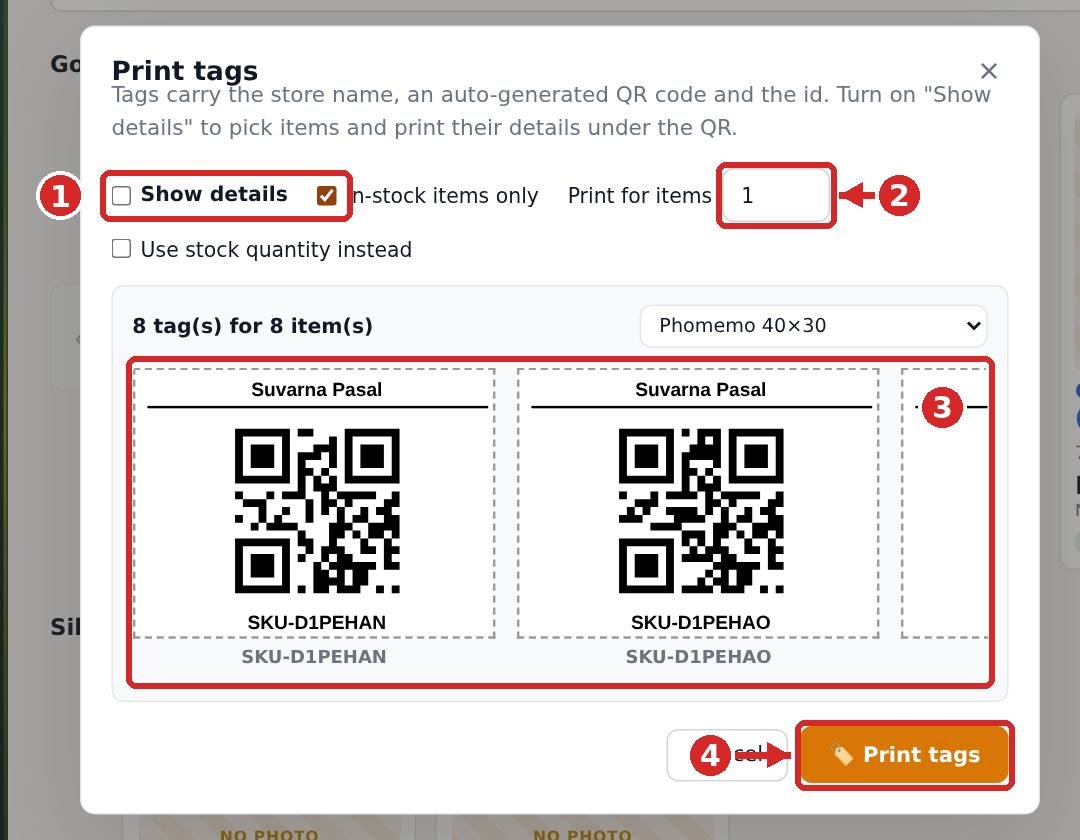
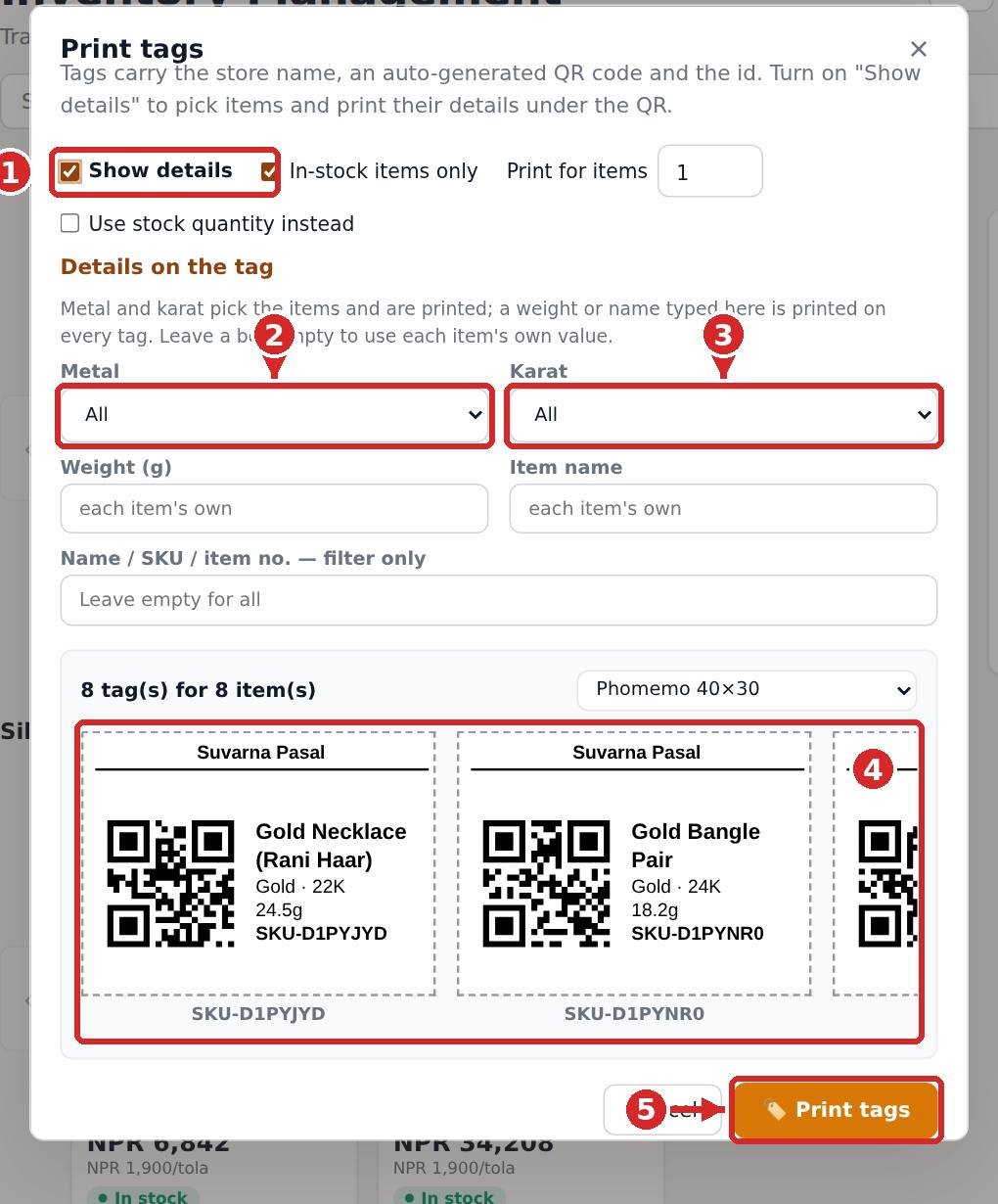
- What is on a tag: your store name, a QR code and a unique code in the form SKU-D1PYJYD (date + serial). Scanning or typing that code at the POS adds the piece to the cart, so every physical piece can have its own code.
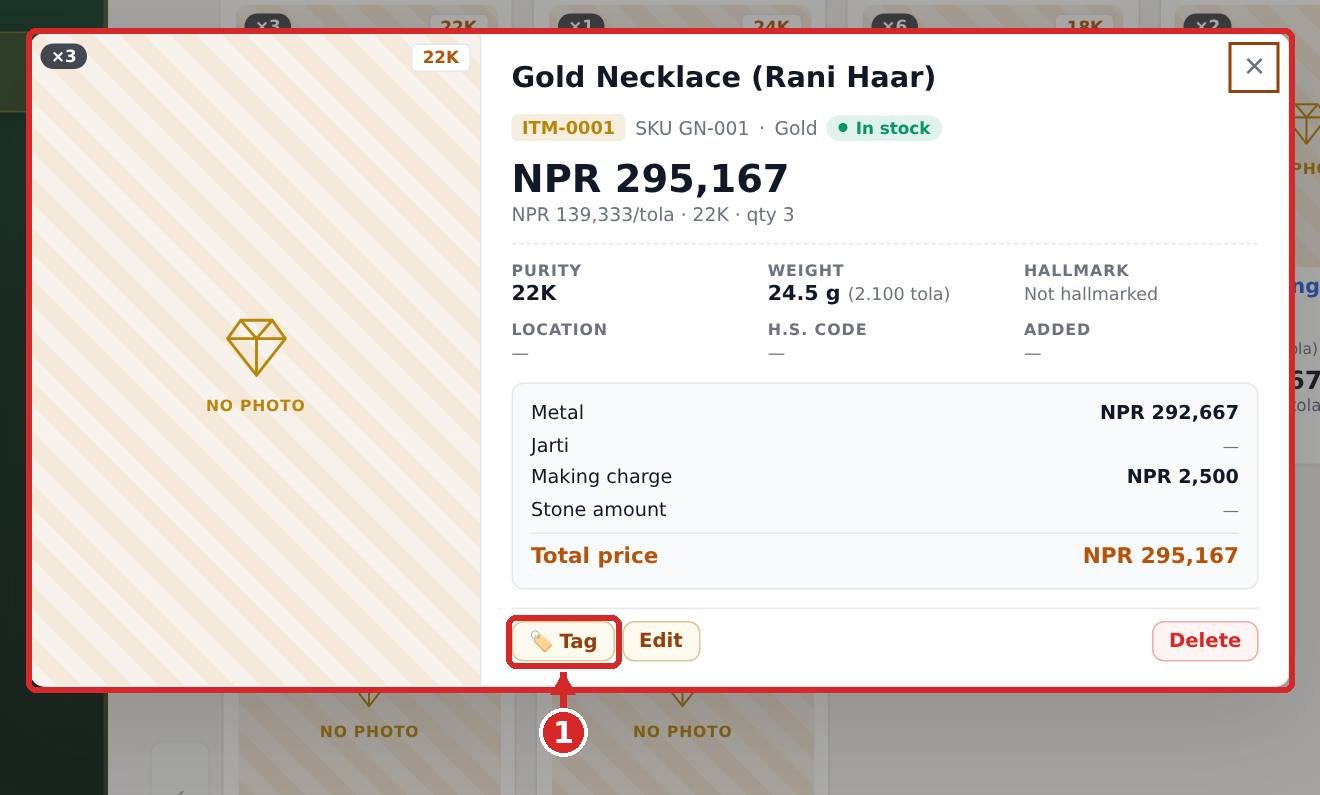
- One piece: open the item card in Inventory and press 🏷️ Tag (picture A). The tag is generated at once. Leave Tags = 1, check the preview and press Print tags (picture B). The label size is chosen once under Settings → Tags & Printing.
- Several pieces of the same item: type the number in Tags (picture C). Each tag gets its own code and QR — SKU-…YD, …YE, …YF — and all of them appear in the scrollable strip. The number is prefilled with the stock quantity.
- Details on the tag: tick Show details (picture D). Inputs for name, weight in grams, metal and karat (24 / 22 / 18, default 24) appear, prefilled from the item. What you type here is what prints: the name, "Gold · 22K" and "22g" on separate lines under the QR. Untick it for a plain store-name + QR + code tag.
- Many items at once: Inventory → Print tags (top right) prints a tag for every in-stock item. "Print for items" sets how many tags per item, or tick "Use stock quantity instead" (picture E). With Show details on, filter by metal and karat and print the details on every tag; a weight or name typed there overrides the item values for this print (picture F).
- Printing (DYMO LabelWriter 450): Settings → Tags & Printing → Label printer: choose “DYMO 54×22 mm jewellery tag (2 items per page)” (two items on one horizontal page: barcode left, name/details/number right) or “DYMO 30299 Jewelry barbell” (two items per sticker). Open the POS from the “SubarnaPasal POS” app on the Desktop: it prints straight to the DYMO with no dialog (54×22 paper, landscape). In normal Chrome pick the DYMO, paper 54×22, Landscape, Margins None, Scale 100%, and save it as a preset. If the sticker prints sideways, set “If it prints sideways” to Rotate 90°. Stick each tag on the matching piece — the codes are saved on the item, so the POS recognises them.
5Make a sale at the POS
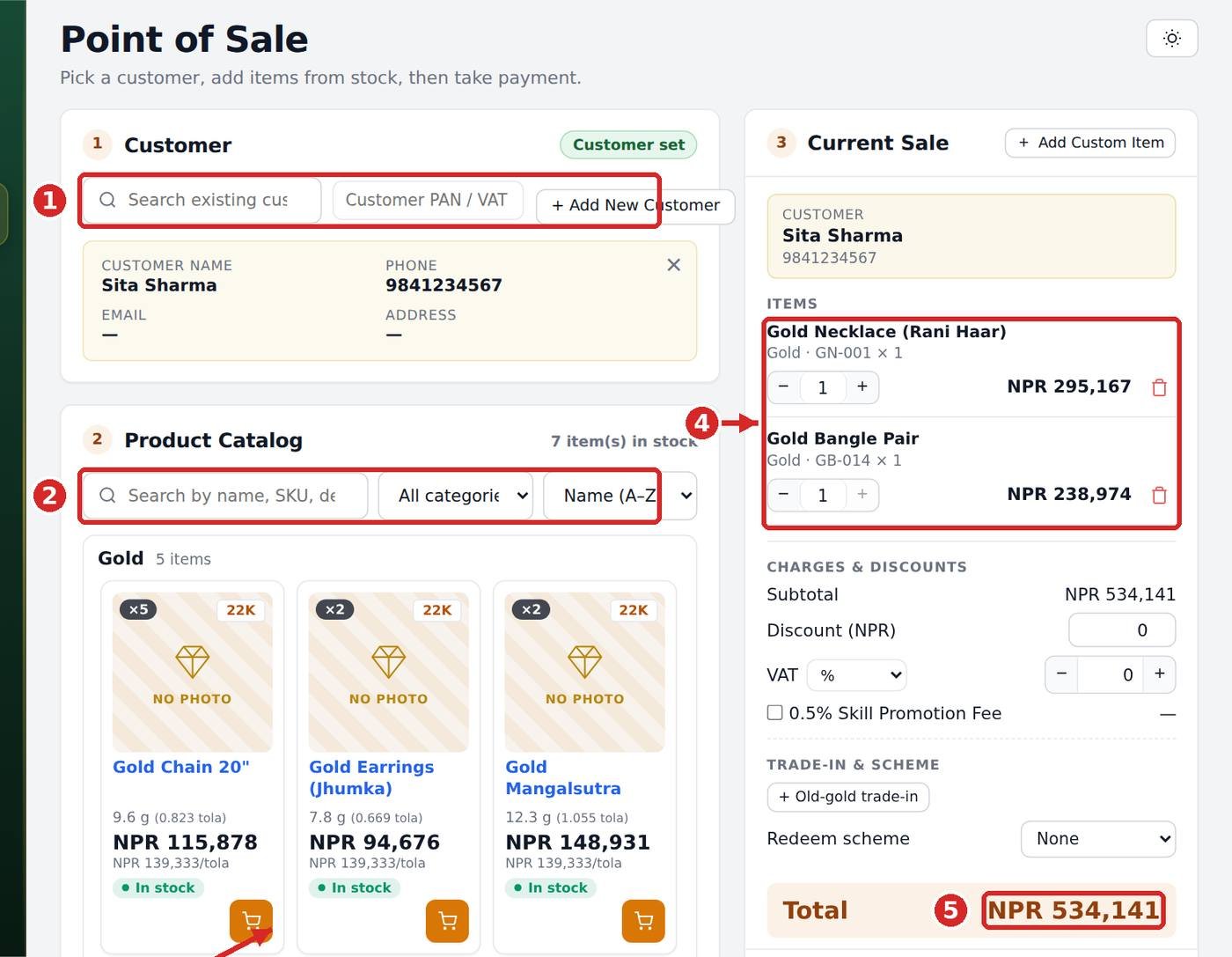
- POS → step 1 Customer (1): search an existing customer, or add a new one with name and phone. A customer is required before items go in the cart.
- Step 2 Product Catalog (2): search by name, SKU or scanned tag code and press the cart button (3). Not in stock? Use + Add Custom Item with its own weight and rate.
- Step 3 Current Sale (4): change quantities, apply discount, VAT, skill fee, old-gold trade-in or a savings-scheme balance. Check the Total (5), choose the payment method and Complete sale — the invoice number is assigned automatically and the bill can be printed or shared.
6Customer link (customers pick what they want to see)
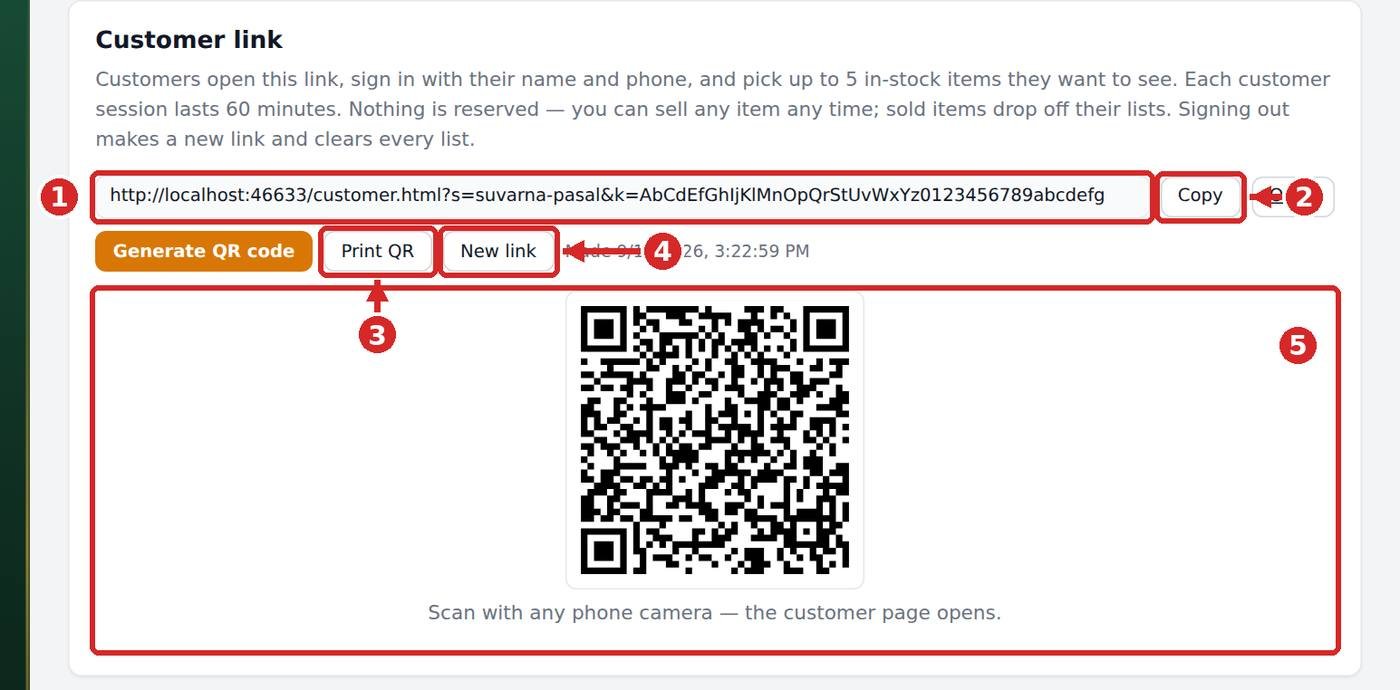
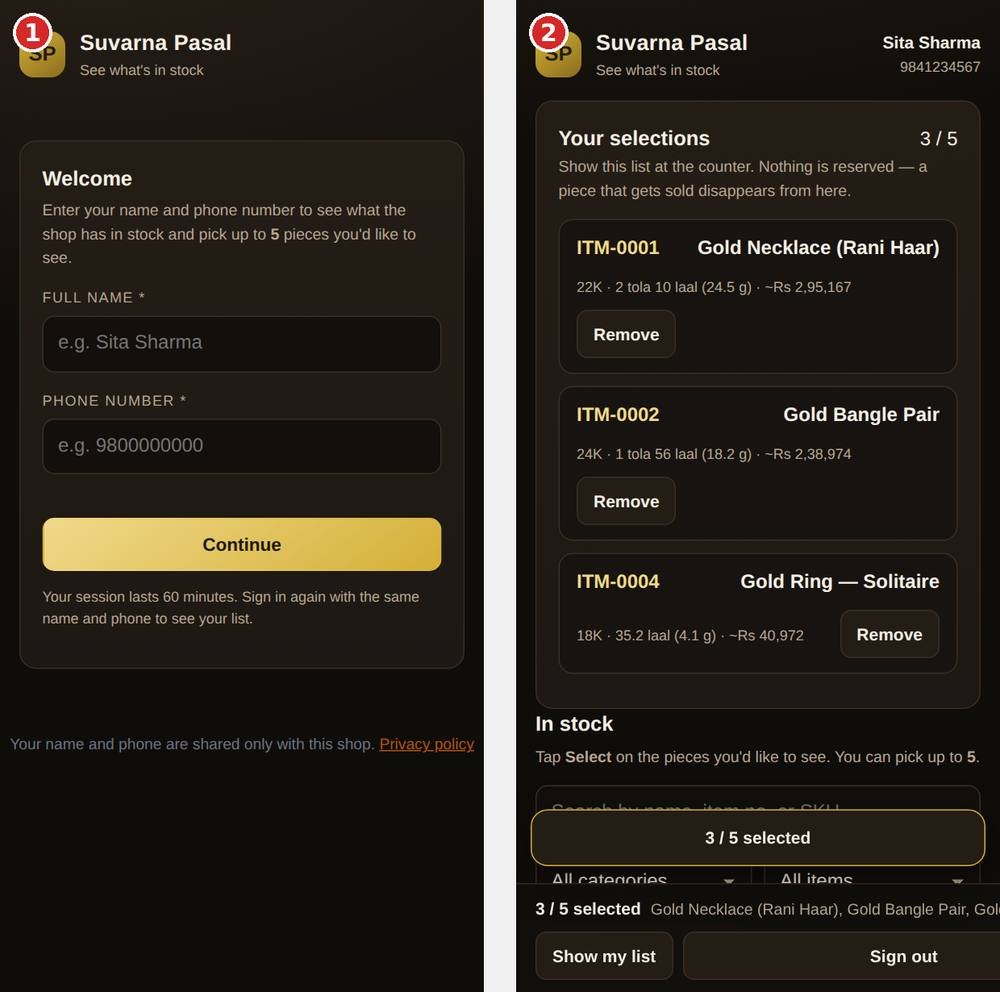
- Settings → Customer link: a new secret link is made every time you sign in (1). Copy it (2) for WhatsApp / Viber, or Print QR (3) to put a poster at the counter — the QR (5) opens the customer page on any phone camera. New link (4) replaces the old one and clears every list.
- Customers sign in with their name and phone, browse what is in stock and pick up to 5 pieces. Gold weight is shown in tola and laal (1 tola = 100 laal = 11.664 g). Their session lasts 1 hour from opening the link.
- Nothing is reserved — you can sell any piece any time; sold pieces drop off their lists. Signing out of the shop makes the link invalid and wipes all lists.
7Customer selections (Requested)
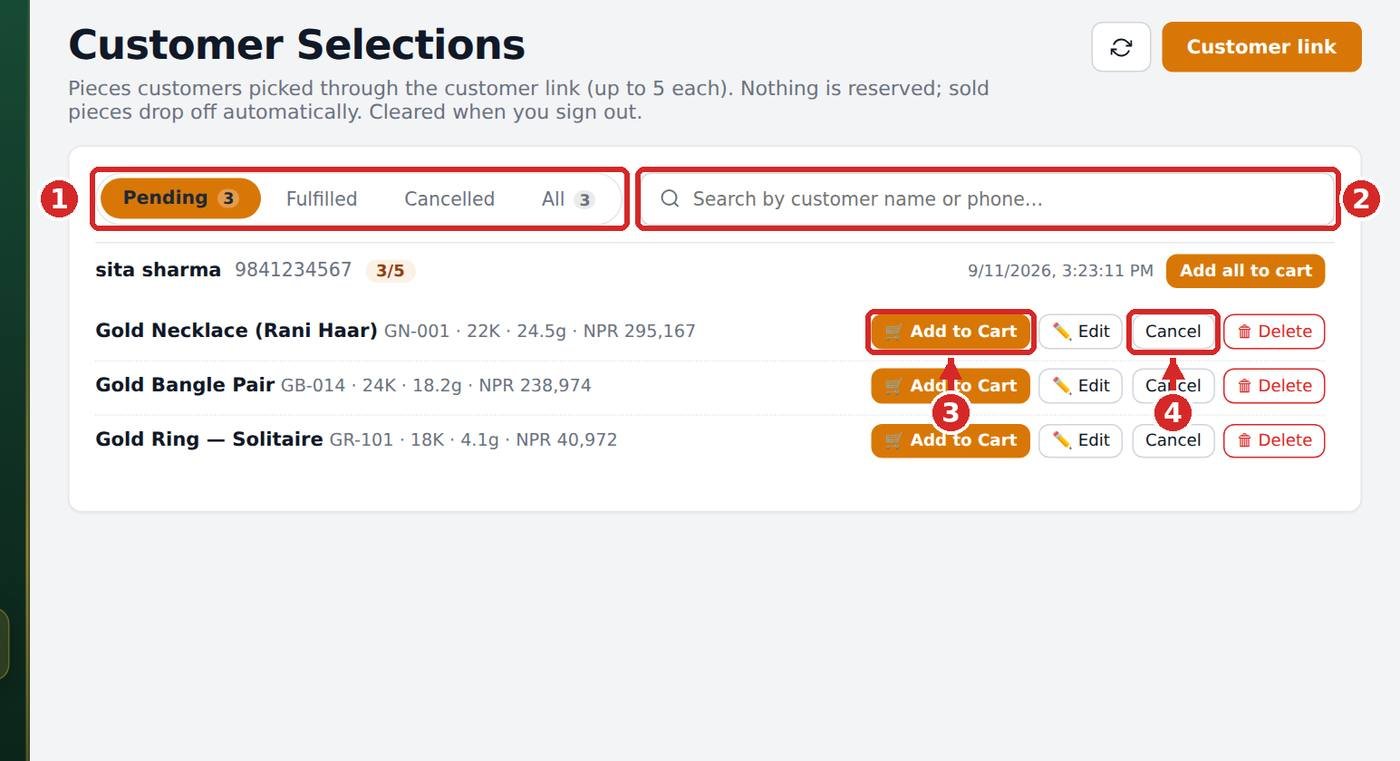
- Requested shows every customer and the pieces they picked, grouped in Pending / Fulfilled / Cancelled tabs (1). Search by customer name or phone (2).
- Add to Cart (3) opens the POS with that customer and piece already in the cart and marks the selection Fulfilled. Cancel (4) moves it to Cancelled; Edit changes the note or quantity; Delete removes it.
- The Customer link button at the top right shows the same link and QR as Settings.
8Find a bill by invoice number
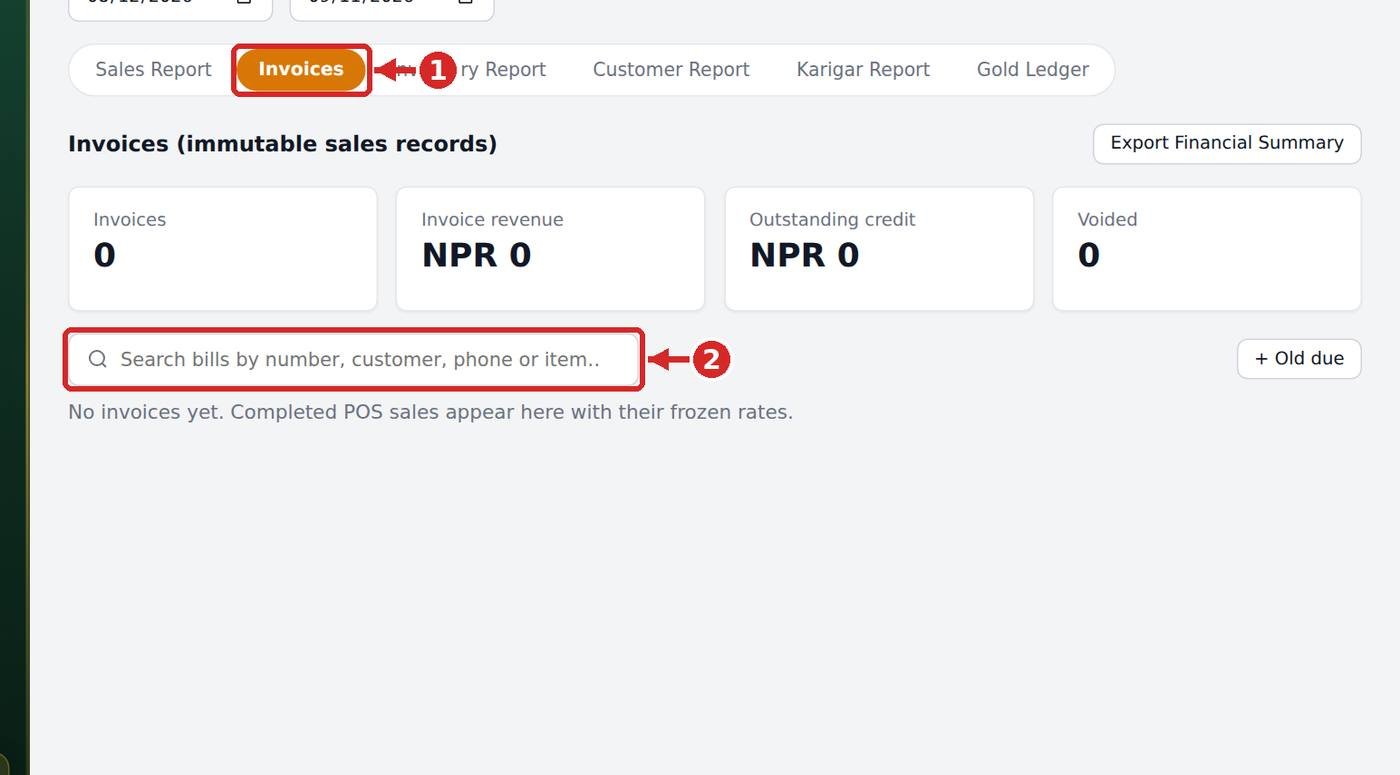
- Reports → Invoices tab (1). Type the invoice number, e.g. INV-000002, in the search box (2) — the date range is ignored while you search, so old bills are found too.
- Open the bill to see the customer, items and payment, or print it again.
9The left menu
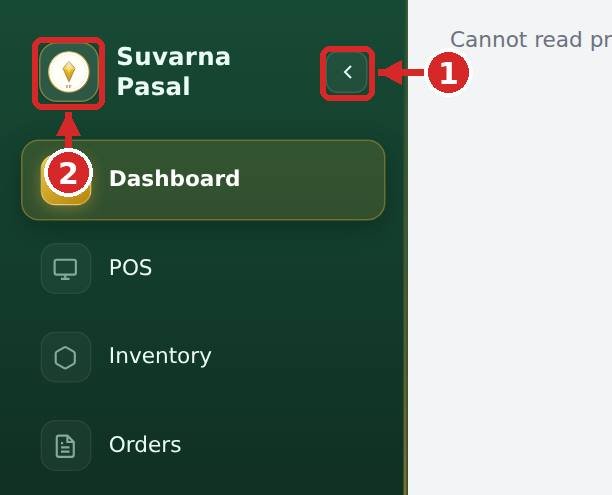
- Press the chevron (1) or the shop logo (2) to collapse the menu to icons and get more room for the cards. Press again to expand; it also opens while your mouse rests on it.
- On smaller screens the menu collapses automatically; on phones it is hidden behind the ☰ button.
10Custom orders
- Orders → + Add New Order: pick an item from stock or describe a custom piece (metal, karat, weight, rate). New orders appear on the Board under New orders; press List for a table.
- Move an order with the Move to buttons (New orders · In progress · Complete). Assign karigar sends the job to a karigar; Cancel stops the order; 🕘 History shows every step.
- When it is Complete, choose one: Add to Cart bills the order at the POS for the customer (the button then shows Added to Cart ✓ — press it again to take it out), or 📦 Add to inventory puts the finished piece into stock with its own SKU.
- Add to inventory deletes the order automatically. The piece now lives in Inventory, marked “From Order SP-…”, with its stock-in history; if the order was in the cart it is taken out, so it is never sold twice. A karigar order is deleted once its job is settled.
- 🗑 Delete removes any order for good after a confirm (it cannot be undone). Karigar gold entries stay on the karigar's ledger.
11Customers, credit, repairs and records
- Customers lists everyone you have sold to, with their purchase history. Customers are created automatically from sales and from the customer link.
- Records tracks credit (udharo), borrowed gold or money, and deposits. Record partial payments and see the outstanding balance at a glance.
- Repairs tracks repair jobs from intake to delivery with the charge and status.
12Gold savings schemes
- In Schemes, open a monthly deposit scheme for a customer and record each installment as it is paid.
- When the customer buys jewellery, redeem the scheme balance against the purchase directly in the POS.
13Karigar (craftsmen)
- Add each craftsman under Karigar → + Add Karigar. Record the gold you issue to them and the finished pieces returned, with wastage. Filter the register by karigar to see one person's history.
- See which orders are assigned to whom and keep a running balance of gold owed. Use + Record Old Gold for old-gold buy-back.
14Expenses, reports and calculator
- Log rent, utilities, raw materials and other costs under Expenses to see them alongside your sales. Salary payments made under Salaries appear here automatically as Salaries expenses.
- Reports gives sales, invoice, inventory and customer reports for any date range, with a summary you can export.
- Calculator converts between tola, laal and grams and prices any weight at your current rate — handy when quoting a customer.
15Mobile app (Android / iOS) and your account
- The SubarnaPasal app for Android and iOS uses the same login. Use it to scan tags at the counter and check stock from anywhere; everything syncs with this website.
- Staff can register from the mobile app; the shop admin approves them before they get access. The mobile app has its own How-to under its Settings.
- Change your password or log out under Account below. Need help? Email support and we will get back to you.
16Salaries
- Open Salaries in the left menu and press + Add Employee for each staff member.
- Record Salary Period: pick the employee, the period and the amount, then the payment method (cash, bank transfer, card, other). The status is Unpaid, Partially Paid or Paid.
- A partial payment creates a Salaries expense only for the amount paid; a reversal is kept as a negative entry so history is never deleted. Use Export CSV for your records.
Privacy & support
How your data is handled, and where to get help.
We use Google Analytics to understand which features are used, so we can improve the app. No customer or sales details are sent — only anonymous usage counts.
Account
Deactivate store
This store is locked. All of its data will be permanently deleted on ().
Until then you can sign in here and print all of your information for your personal records — stock, customers, orders and sales — but nothing can be added or changed. Cancel any time before that date to reopen the store; nothing is deleted until then.
Closing your store locks it immediately and permanently deletes all of its data one month later. You can cancel at any time during that month.